Monday, 8 January 2018

My experience with the Sketch50 movement

I had an amazing experience through my participation in the sketch50 movement from March 27, 2017 to April 15, 2017. I learned about the event from one of  Wanda Terral's tweets. Sketch50 was an initiative launched by a number of teachers through social media. It mainly addressed educators and students. The aim was to sketch something related to a daily prompt we were given for a period of 50 days. I resorted to a google calendar displaying each day's prompt and also to the relevant tweets with the prompts by Sketch50. The hashtag we used on twitter was #sketch50.

In the beginning I felt I would not manage it at all. My co-participants' likes and some retweets encouraged me to continue and reach the end of this great journey. Picking the app that suited you and learning how to use it was a great challenge at the beginning. The apps I personally used included Loose Leaf, Adobe illustrator Draw and last but not least Paper by 53.


🙂I enriched my PLN as I met so many bright and like-minded people on twitter! Some of them include:

🙂I liked the fact I got a badge for each theme I completed at https://www.badgelist.com/Sketch50-2017

🙂I enjoyed the great finale with Sylvia Duckworth's sketchnoting live presentation, which was available by EdTechTeam Live.

🙂I used my imagination to develop ideas through sketching and I became more creative.

🙂I got more observant about objects around me. Have you ever thought how fast we are walking past objects around us without noticing them?

🙂 I started instilling my passion for sketchnoting in my students!

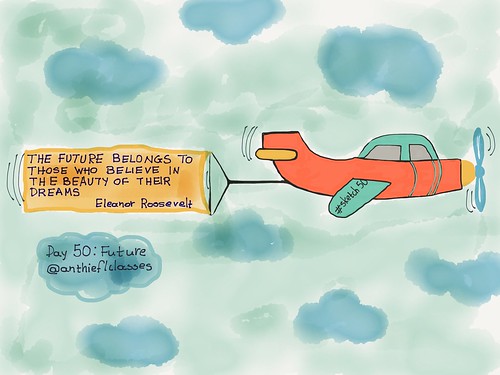
Here are my sketches 1-50 on each day's prompt:
Sketch 50 by Anthippi

Wednesday, 9 August 2017

Lumen5 for video making

Lumen5 is a great tool I learned about from one of J. Wagner's tweets. It automatically creates a video in the form of a summary for a blog post. After you paste the url of your blog post, you choose the template you like. Then you click on the plus button to add content from the blog script that appears for you. You may need to edit the content you have added in each section by limiting it to 140 characters or by modifying it in the way you like. Here's an example of a Lumen5 video created from one of my blog posts.


Wednesday, 19 July 2017

Random Name Picker

Here's another tip I liked while I was watching Tony Vincent's periscope. You can create a random name picker with flippity.net. You can also have the options of having your students automatically divided into groups or getting a random seating chart.
Here is a summary of the steps you should follow to make your own name picker adapted from http://www.flippity.net/RandomNamePicker.asp

  • Make a copy of the template provided by flippity.net. The link to the template is here: https://goo.gl/ckauML. Edit the names and label your class by changing the name of the worksheet at the bottom.
  • Publish your spreadsheet to the web.
  • Get your flippity.net link at the bottom
  • Bookmark your link. Make use of the options provided at the top bar.

Here's the link to the Name Picker I created for one of my classes MY RANDOM NAME PICKER.

Animating an image with google slides

Yesterday I stumbled upon one of Tony Vincent's periscopes on twitter. I was impressed by one of the presenters, Kasey Bell, who explained how you can create animation using google slides. I had read about this hack somewhere else as well, but yesterday I consolidated the way you can achieve this effect. And as the title of my blog suggests it is designed for my tech notes; thus, I would like to post this tip here so that I can remember it in the future!
To start with, I inserted a free creative commons image on a google slide and a butterfly png (an image without a background). Then I duplicated the slide (Ctrl+D) and I dragged the butterfly a little farther than its original position. I duplicated the new slide and moved the butterfly a little bit again. I followed the same process creating eight slides - I absolutely believe the result will be much better if you create more slides, though! After this, I published the google slides (File- Publish to the web). I changed the auto-advance slides to 'every second' both for the link and the embed code options and here I embed the result:

Monday, 10 July 2017

A Summary of my 2016-17 etwinning project


Saturday, 25 February 2017

ListeningEVO17

Having been a participant in the ListeningEVO course, I feel the desire to express my deepest gratitude to all the organizers and especially to our moderator, Ms Olya Sergeeva. All the input material we were exposed to was highly interesting and enormously useful for a listening teacher. The course lasted five weeks, from January 8 to February 12, 2017. Below I'm recording some of the takeaways from my participation in this MOOC based either on new knowledge or high interest of content to me.

To start with, reinforcing autonomous listening through an out-of-school listening scheme was stressed during our first week of the course. Technology integration can obviously facilitate this scheme. Some stimulating suggestions for learners include listening to radio stations (e.g. 
http://www.listenlive.eu/uk.html, podcasts (e.g. https://independentenglish.wordpress.com/2012/02/14/podcasts/, favourite songs (e.g. https://lyricstraining.com/), audiobooks (e.g. http://www.loyalbooks.com/), youtube videos, web tools with audio features (e.g. https://quizlet.com/) and many more online resources curated by the course participants on a shared google spreadsheet (https://goo.gl/FQZbYz).

Something additional that particularly struck me during week1 was the shadowing technique as a useful approach to encourage autonomous listening and speaking practice. Shadowing requires EFL learners to listen to a short audio text many times. The short audio text should be saved on each learner’s device so that they can listen to it outside class as regularly as possible; an accompanying transcript should also be provided to the students. The practice stage of this technique encourages students to repeat and copy, as precisely as possible, the speaker’s pronunciation, rhythm, pace and other speech features. As a subsequent step, the students record themselves on an audio recording tool such as Audacity when they feel they sound similar to the speaker on their audio text.

In week 2 I enjoyed Elena Wilkinson's neat presentation on the structure of a traditional listening lesson which can be enhanced through the use of authentic materials and real-life tasks. Here are my notes on E. Wilkinson's live session.
ListeningEVO, wk2 by anthiharou

Week 3 focused on the importance of 21st-century skills, critical thinking and HOTS (higher order thinking tasks) in the design of listening tasks to engage learners.

Weeks 4 and 5 proved to be a gem for me as I acquired valuable knowledge shared by outstanding experts on the topic such as R. Cauldwell, S. Thorn, and O. Sergeeva. Listening is quite troublesome for ELLs because words have a variety of soundshapes and are not visible as they are in reading. Therefore, we need to prepare learners to cope with the jungle-type situations of messy speech they will face in real life. Exposing learners to authentic listening texts with a variety of unruly sounds, and providing them with decoding tasks to train them to recognize individual words are means which enable ELLs to reach the ultimate goal which is meaning. Gap-fills and dictations can be effective activities in raising learners' awareness of phonological and other speech features such as word or sentence stress, elision, glottal stop, schwa, assimilation, intrusive sounds in a stream of authentic speech.  

At this point, the use of technology can facilitate the implementation of decoding skills to a great extent. Aegisub is a helpful open-source tool which can reinforce decoding. An enlightening tutorial supports teachers in the way they can leverage this tool in class or in the way they can guide their learners to use it in an autonomous mode. Deciphering difficult chunks of connected speech can be addressed by replaying an isolated line of a subtitled video or audio file which has been uploaded on Aegisub. Moreover, PlayPhrase.me can be integrated into teaching listening by getting students practice discrimination of authentic speech through snippets from TV series. Antony Schmidt has written an enlightening blog post on the use of this website for listening decoding purposes. Last but not least, one of my favourite websites was TubeQuizard which provides a great collection of listening quizzes and also enables users to train with their favourite subtitled videos.  O. Sergeeva provides a nice tutorial on how to create listening decoding quizzes for learners using this tool. 

To conclude, I enjoyed an amazing course on how to teach listening. I liked the well-organized structure of the MOOC, the wealth of interesting input materials such as videos, articles, lesson plans and presentations, my interaction with other participants, the badges I earned, Ms O. Sergeeva's enthusiasm and encouragement as a moderator, the facebook page, the twitter posts and, of course, the new knowledge I acquired.  

Written by Anthippi Harou

Thursday, 2 February 2017

Reviewing the Alphabet with Augmented Reality

Have you finished with teaching your young learners the alphabet letters and you need some sort of exciting review activities? 

Songs, rhymes, games and other similar activities can provide fun ways for young learners to revise and consolidate the alphabet. Another even more appealing way to engage them in learning is to invite them to review the letters through Augmented Reality.

'AR flashcards - Animal Alphabet' is an amazing app which will offer your students an unforgettably enriched experience of  learning and playing. This free augmented reality app is available on the app store here or google play here. Teachers or parents download the aphabet flashcards here, print them out in colour or just display them on another device.

The words that accompany the alphabet flashcards of the specific app are related to animals:
alligator, beaver, cat, dog, elephant, frog, gorilla, horse, iguana, jellyfish, kangaroo, lion, monkey, newt, owl, penguin, quail, rabbit, snake, turtle, urchin, vulture, walrus, oxen, yak, zebra

| ˈælɪɡeɪtə | ˈbiːvə | kæt | dɒɡ | ˈelɪfənt | frɒɡ | ɡəˈrɪlə | hɔːs | ɪˈɡwɑːnə | ˈdʒelɪfɪʃ | ˌkæŋɡəˈruː | ˈlaɪən | ˈmʌŋki | njuːt | aʊl | ˈpeŋɡwɪn | kweɪl | ˈræbɪt | sneɪk | ˈtɜːtl̩ | ˈɜːtʃɪn | ˈvʌltʃə | ˈwɔːlrəs | ˈɒksn̩ | jæk | ˈzebrə |

Students point their device at each flashcard and a 3D animal pops up on the screen. When they tap the animal on their device, they can hear the letter and the animal name. They can also easily take screenshots of their augmented flashcards by tapping on the camera icon when the app has started. Below you can see screenshots taken for each of the letters.


'AR flashcards- Animal Alphabet' will definitely provide young learners with an enhanced experience they will never forget. Young learners will have the opportunity to review, recycle, practice the alphabet and the names of the corresponding animals on each flashcard in an 'eye-popping' way!